Dragon Naturally Speaking Tutorial - Medical Transcription Software

SCRIPTING
Creating Scripts and Macros is very useful to truly get the most out of Dragon Naturally Speaking. Dragon software can not only be used for direct transcription but also can be used to run any Windows Application such as MS Word, a Medical Billing program or an EMR software package.
Scripts can be used to set up templates (I.E. Initial Exam) or to easily run or move around a program (I.E. Go to Next Field in a Template).
Many (hundreds) of scripts are already built into Dragon. To view the most popular scripts for an individual program, just say "Open Command List" while in the specific program (you must also have the DNS program open as well).
Script Creation and Management
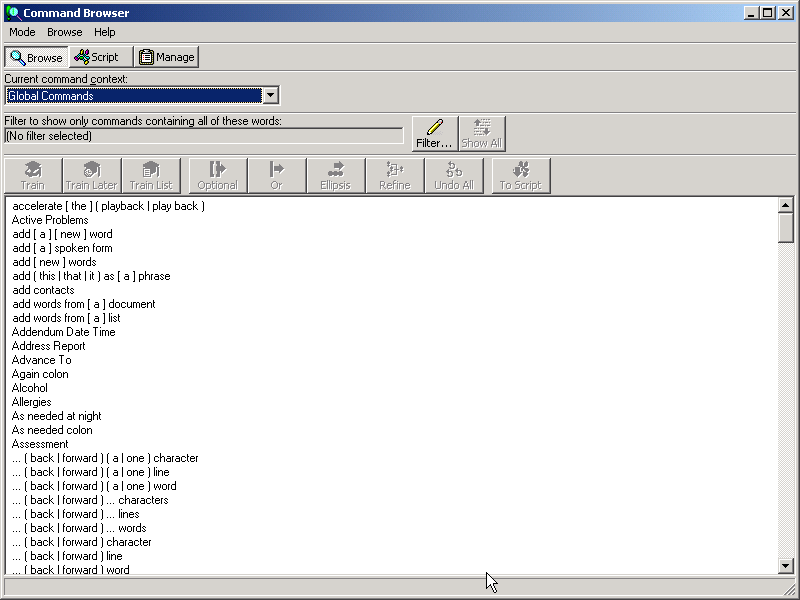
1) To Create or Manage Scripts, open the "Command Browser". Within Dragon, click "Tools", "Command Browser".
.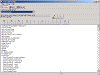 Click to enlarge. Click to enlarge.
The easiest three methods of creating a script are:
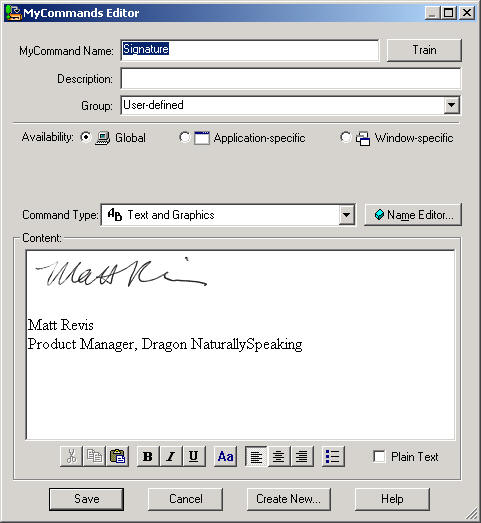
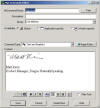
2) Text and Graphics - Best to create a template, add standard paragraphs or input a scanned signature. I give an example of a signature in the graphic below.
 Click to enlarge. Click to enlarge.
-
In "MyCommand Name" type name of command.
-
Click "Train" and train it to your voice.
-
In "Availability", choose:
-
"Global" to have it work in all programs.
-
"Application Specific" to choose a single program for it to work in. You will also have to choose that program (which must be running at that time).
-
"Window Specific" to choose a specific Widow within a specific program (Window must be open in program).
-
In "Command Type", choose "Text and Graphics".
-
In "Content", type in text and / or insert graphic (ie, a signature) .
-
Click "Save".
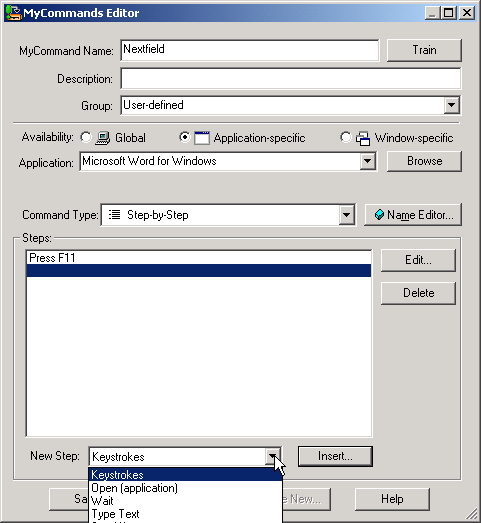
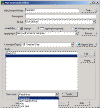
3) Step-by-Step: Best for inner program movement such as going to "Next Field" within a template. Also good for combinations of text and keystrokes. I use the example of "NextField" in the graphic below.
 Click to enlarge. Click to enlarge.
-
In "MyCommand Name" type name of command.
-
Click "Train" and train it to your voice.
-
In "Availability", choose:
-
"Global" to have it work in all programs.
-
"Application Specific" to choose a single program for it to work in. You will also have to choose that program (which must be running at that time).
-
"Window Specific" to choose a specific Widow within a specific program (Window must be open in program).
-
In "Command Type" choose "Step By Step"
-
Click drop down arrow to right of "New Step" below "Steps" box.
-
Choose step type.
-
Click "Insert" below "Steps" box to insert a key stroke, text, etc.
-
Type step (such as F11 - actually press F11 key)
-
Click "OK".
-
Click "Save".
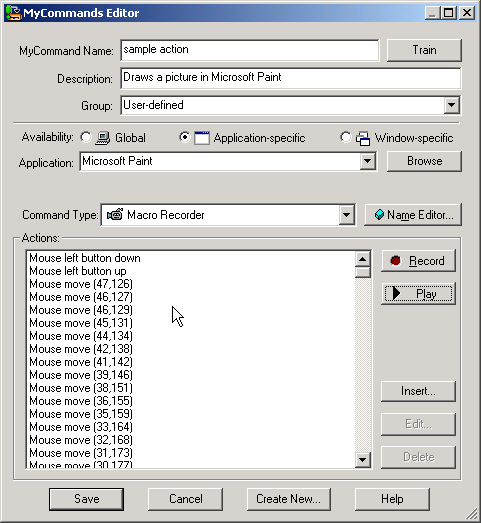
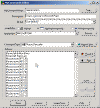
4) Macro Recording - This actually records your movements on the computer including mouse, text and keystrokes. Use this as a last resort, due to the fact that it is slow-performing. This is a good process for tracking actual movements, such as making a drawing.
 Click to enlarge. Click to enlarge.
-
In "MyCommand Name" type name of command.
-
Click "Train" and train it to your voice.
-
In "Availability", choose:
-
"Global" to have it work in all programs.
-
"Application Specific" to choose a single program for it to work in. You will also have to choose that program (which must be running at that time).
-
"Window Specific" to choose a specific Widow within a specific program (Window must be open in program).
-
In "Command Type", choose "Macro Recorder".
-
Click "Record".
-
The command browser will disappear. A mini "Stop/Play" button wll pop up in lower left of screen. Click this to stop recording.
-
Go through the steps that you want to record.
-
Click the stop button in the mini recorder.
-
Click "x" in the top right of the mini recorder window. This will send you back to "Command Browser".
-
Click "Save".
Order Dragon Naturally Speaking
Schedule your FREE Medical Transcription Software Demo today.
View the History of Voice Recognition and Speech Recognition Software
|